
Years back, when we looked at how we built and designed a WordPress site, it mostly meant picking a theme, swapping in a logo and brand colors, and editing a few lines of HTML or CSS to make it look a little less like everyone else's. The software, though a bit raw at the time, helped users publish websites the entire world could see, opening up possibilities for web designers and developers that many had never imagined before.
However, just as everyone's expectations for websites have grown, WordPress design has moved well beyond editing a simple theme or adding a few lines of code.
With the rise of block features and page builders like Elementor and Divi, along with a vast library of plugins, designers and developers now have more powerful tools for creating user friendly websites and carrying out a wide range of customizations.
In this article, we will cover these WordPress design principles, from planning and studying its ecosystem to choosing and customizing a WordPress theme, creating essential pages, selecting useful plugins, and making a WordPress website look professional.
Introduction: WordPress Design Needs a Plan
The most exciting and fun part of building a WordPress website starts with picking a theme that you think looks visually good in the demo, installing it, switching the text and stock photos, installing some useful plugins, and calling it done.
Sounds easy and not so complicated, right?
While the beauty of WordPress is that you don’t have to worry about what’s happening on the backend to manage a site (unless you want to), installing a WordPress theme and swapping elements is only the beginning. Knowing how to design a WordPress website properly means understanding the difference between a site that simply looks finished and one that actually works.
Effective WordPress design follows a clear order of decisions. Before getting started with WordPress design, you need to take a closer look at your plans for the website and organize your plan of attack. Skip the planning phase, and your website is all set for disaster.
To build a WordPress site that actually converts, you must work within a clear process that prioritizes logic over looks:
Goal. The first question to ask yourself out loud is: “What is my website all about?” This should help define your website’s goal, what the site exists to accomplish.
Content. Having an idea of what information you should share with your audience makes planning your approach a little easier.
User Path. Covers the route a real person takes from landing on the site to taking action. Without a clear site structure, users will either end up lost, become confused, or simply abandon your website
Design. Includes colors, fonts and layout that help your branding and the content you have created yourself. Overdesigning a website can create visual clutter and confuse the users.
Why WordPress Website Design Is Different
Designing a WordPress website is different from building a website from scratch.
A typical custom-code website begins from scratch. A web designer and developer will build every design element and code file. WordPress website design, however, has a different starting point and does not start on a blank screen. This foundation is called a "content management system," or CMS.
WordPress websites rely heavily on a CMS which comes with themes, templates, plugins and visual editors out of the box. This allows web designers and developers to focus on developing layouts, maintaining content and adding functionality instead of manually writing HTML, CSS or PHP.
The Benefit: A Faster Launch Without Coding
With WordPress, you can have a website live in days, not months of development. You don’t need a developer to make every change because the WordPress CMS does a lot of the heavy lifting for you.
It enables any user to publish a fully functional web site in lesser time and lesser cost with little or no programming knowledge.
The Risk: A Template May Not Fit Your Business
A WordPress theme is designed to serve thousands of different users and businesses, not just one specific business. As a result, relying heavily on a theme's default design can lead to generic layouts and websites that look similar to many others.
This can bring up several issues like:
1. Brand mismatch
A theme’s default fonts, colors, layouts, and overall style may not align with your brand identity.
2. *Content Alignment *
WordPress themes usually include default layouts and simple filler content, such as images, text, and other elements. If you rely too heavily on these defaults, your content may have to fit the theme's structure rather than allowing the design to be built around your specific content and brand needs.
3. Conflict of Goal Path
Regardless of how beautiful a template may look, it may not be designed to guide visitors toward the conversion paths, calls to action (CTAs), or user flows that your business depends on.
4. User Experience
Too many page-builder elements or unnecessary default plugins can make a WordPress website run sluggish and create functional inconsistencies if they are not configured, maintained or optimized properly.
The most effective WordPress websites take advantage of the platform's speed and flexibility while being thoughtfully customized around the brand, content, business goals, and the people who will actually use the site.
If you’re not sure where to start or how to go about the process, you can always hire website development companies to help you plan, build and customize your WordPress website.
Plan Before Choosing a WordPress Theme
Your theme of choice impacts your branding, structure, and layout. Picking one too soon usually means bending your content to fit someone else’s design.
When you plan your WordPress website design first, you can choose a theme that can support your website goals instead of one that quietly limits them. On the other hand, if you rush picking one before defining those goals, you risk having to change your design strategy to fit the theme’s default setup.
To avoid these pitfalls and limitations, follow the steps below to ensure the theme of your choice serves the website you want to build, not the other way around.
Step 1: Define the Website Type
Ask yourself: What kind of WordPress website am I aiming to build? What is the goal of my website?
These questions narrow down the theme categories dramatically.
For example, a business site needs trust signals, clear company information, and easy-to-find contact forms. A blog should have readability, typography, categories and author bio that are vital for smooth navigation. An online store, however, needs features that support the buying process, from product pages and WooCommerce integration to a simple checkout.
Each type carries different expectations for layout, navigation, content hierarchy, and functionality.
Step 2. Define the Website Requirements
Next, define the factors that could influence your WordPress design including:
- Your Target Audience: Who are your expected users? What devices do they use? What do they expect from your website?
- Expected User Actions: What are the main things you want visitors to do? (e.g. buy, subscribe, contact, download)
- Page Structure: What pages need to be built? (e.g. Home, About, Services, Blog, Contact)
- Brand Style: What style, images, colors, and overall feel should your website have? (e.g. formal, casual, or playful)
- Content Volume: How much content do you need to produce? (e.g. 10–100 blog posts, 25 product pages, etc.)
Step 3: Choose Theme Features Based on Your Needs
Each theme has its own strengths, be it fast loading, responsive design, customization options or ongoing support and updates. The tricky part is picking up a theme that has the features your WordPress website really needs.
Using the information from Steps 1 and 2, determine what your website’s theme needs to do, and then pick a theme that contains the features and capabilities you require.
Some essential theme features to consider include:
- Lightweight and fast-loading performance
- Responsive design
- Flexible customization options
- Compatibility with plugins, page builders, ecommerce tools, and APIs
- Active support and regular updates
- WCAG and accessibility support
- Scalability and flexibility for future growth
The Golden Rule
If you find a really great theme with stunning demos but it cannot support your desired page structure, user actions or content volume then it is better to reject it!
A theme that checks those boxes will save you time, reduce the amount of customization you have to do and give you a website that does its job well.
Choose and Customize a WordPress Theme
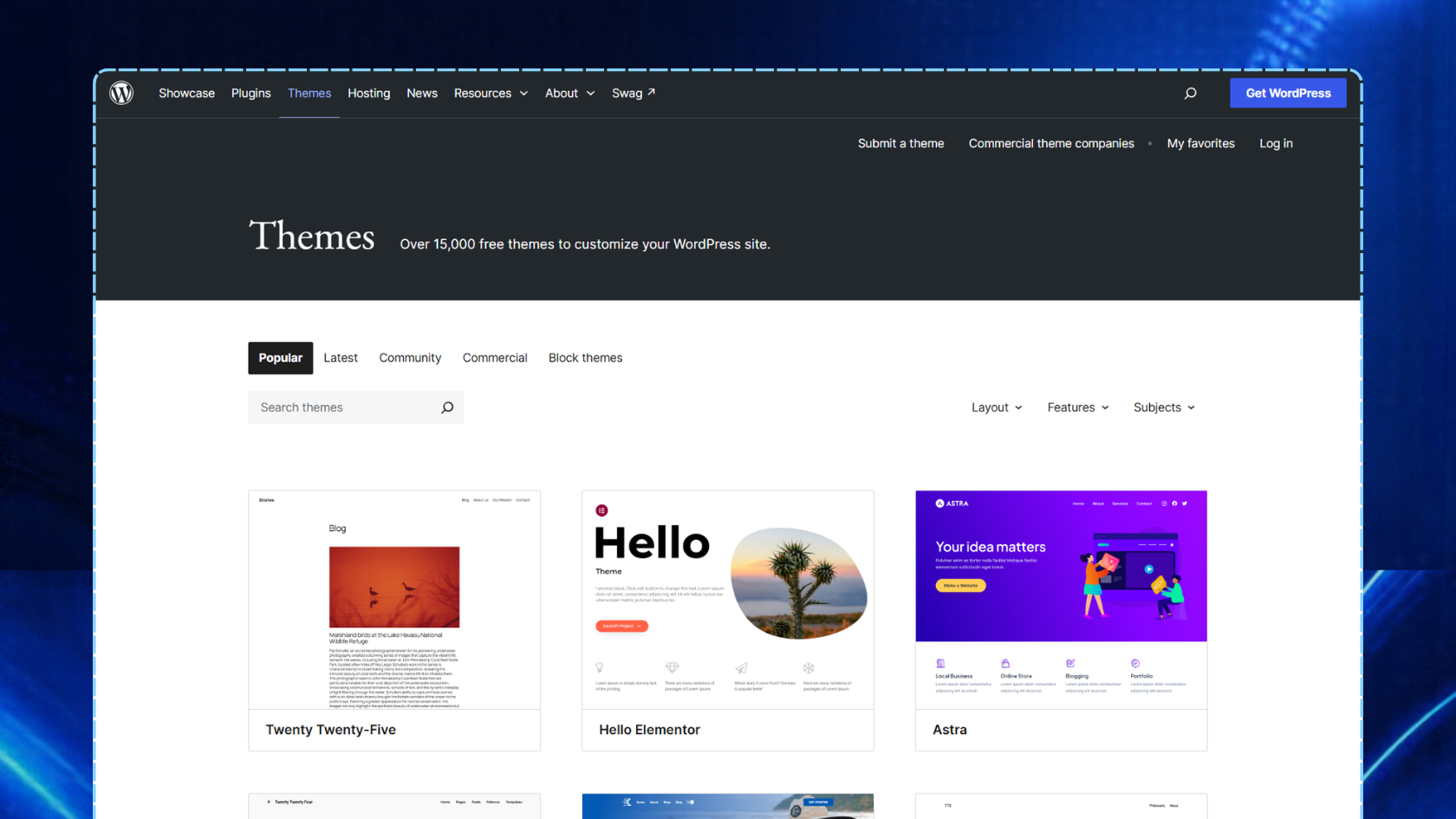
A good theme gives you a solid foundation and enough customization options to build a website that reflects your brand, meets your visitors' needs, and stands out from the competition. Whether you choose a free or premium theme, consider these practical criteria before making your decision. (Image Source)
Your WordPress theme controls your entire site design, and how it will work for each visitor.
A good theme gives you a solid foundation, as well as thoughtful customization options, to help you build a website that reflects your brand, serves your visitors, and stands out from your competitors.
Having said that, finding the perfect theme to customize can be a daunting task, especially if you are a beginner. When comparing themes, whether free or premium, assess them against these practical criteria:
1. Flexibility
Your theme can look clean and functional in its demo, but that doesn't mean it's flexible.
When looking for a theme, check for a wide range of layouts, multiple header and page options, different content types, and full-site editing options.
2. Speed
Website speed is a very important factor for both SEO and user experience. A lightweight theme with clean code, less scripts and styles can help improve page speed and overall performance.
Before choosing a theme, run a demo of it through Google PageSpeed Insights or GTmetrix and check the Core Web Vitals.
3. Mobile Quality
According to Statista, mobile devices account for 51.48% of global web traffic in the second quarter of 2026. This means that having a mobile-friendly theme can help you reach more users than ever.
Before selecting any theme, check the theme demo on a real phone or use responsive testing tools such as BrowserStack or TestMu AI.
4. Editor Compatibility
Across the WordPress ecosystem, there are three main categories of editing experiences: the Block Editor, the Site Editor, and third-party page builders.
Make sure the theme of your choice works with the editor you plan on using. Block themes are built to work with the WordPress Block Editor and Site Editor. If you prefer a page builder such as Elementor, Divi, or Beaver Builder, choose a theme designed to work with the page builder you’re familiar with using.
5. Support and Updates
Not all WordPress themes receive active support via a forum or ticket system. Some themes might not even obtain regular updates to work with newer WordPress versions.
Check how frequently the theme is updated and whether the developer actively maintains it.
What Are the Main Areas to Customize?
- Typography (Font families, sizes, weights, and line heights)
- Colors (Color palette, including primary, secondary, accent, neutral, and text colors)
- Header (Logo placement, navigation menus, search bar, and CTAs)
- Footer (Important links, social links, and subscription forms)
- Templates and Page Layouts (Page templates, and layout options)
- Child Themes and Custom CSS (More design control without directly modifying the parent theme files)
The Purpose of Customization
Customizing WordPress websites is not just a matter of changing colors or replacing logos, text and images.
So what does effective customization really mean? It’s about designing your site. Tweaking the elements to suit your brand, your audience, and your goals. Good customization will make your site unique, easy to use and consistent with your overall brand.
Start With Essential WordPress Pages
You don’t want to end up with a WordPress website that has a homepage and a bunch of empty pages, right?
Then, it's time to start building out the important pages that will make your website feel complete.
Begin with a small set of familiar, commonly used pages so visitors can quickly find what they need.
To start, there are six common pages you can build your website around:
- Homepage – Think of this as the doormat to your website. It should quickly tell visitors who you are, what you offer, and what you want them to do next, be that contact you, buy something, or learn more.
- About Page – Use this page to tell visitors more about your business and brand, your story, mission, vision, and credentials.
- Service or Product Page – This is where you can describe what you do, including short descriptions, prices, variations, and clear calls to action.
- Blog or Resource Page – Use this space to publish articles, news, tutorials, or other useful content. You don't have to publish a big collection of blog posts immediately. Begin with a few good pieces, and add new material on a regular basis.
- Contact Page – Give visitors an easy way to reach you when they have questions. A contact form can collect the information you need while making it simple for them to start a conversation with your business.
- Legal Pages – These are pages that explain important policies and legal information about your website and business. They may include a Privacy Policy, Terms of Service, Cookie Policy, Refund or Return Policy, or Accessibility Policy.
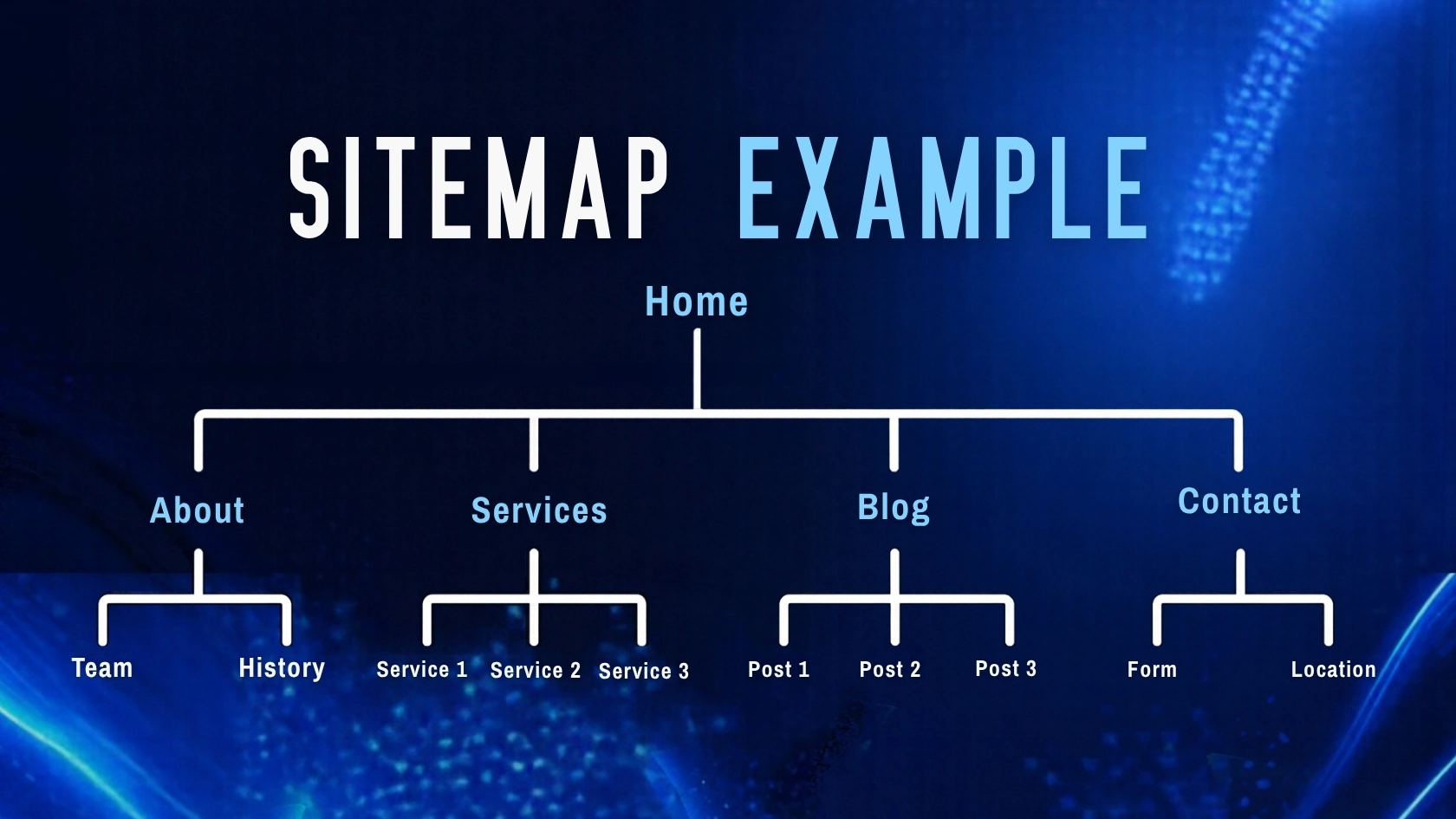
A simple starting page structure could look like the image above. Begin by creating a sitemap with your six core pages. Once your basic site is live, expand the sitemap gradually by adding new pages, categories, or sections as you have content ready for them. (Image Source)
Add Ecommerce or Booking Pages Only When Needed
As your site grows and you add more pages, it is easy to get carried away adding extra features like e-commerce checkout, shopping carts, booking systems, and more (using the WooCommerce plugin). While these features may be useful, they also add additional weight to your site and add additional security and maintenance concerns.
If your business requires appointments or service bookings, a booking plugin, quote request form or third-party service may be useful. But if you just want a way for customers to reach out to you, a simple contact form may be enough.
Choose Useful WordPress Plugins
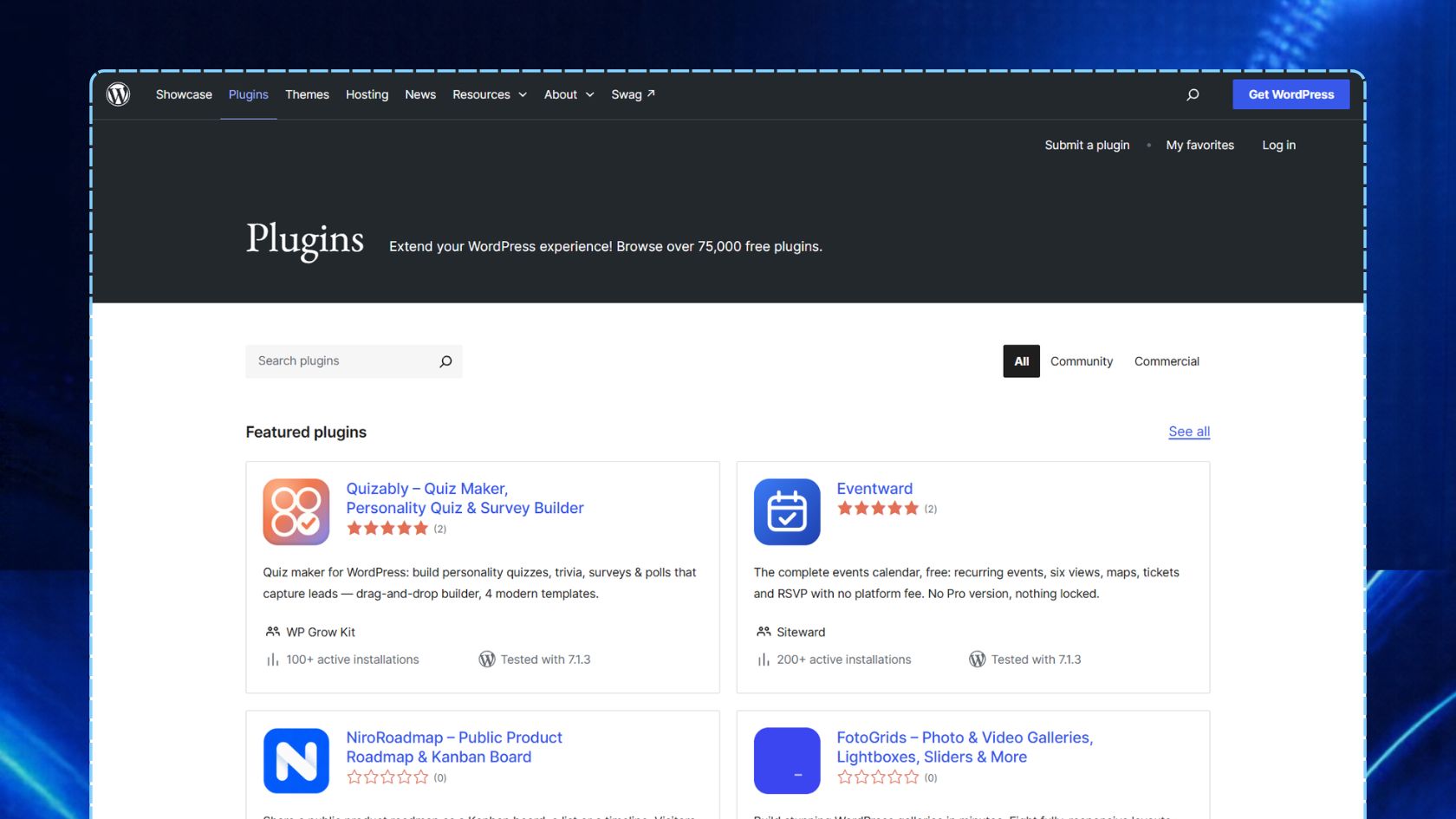
There are over 60,000 plugins available in the official WordPress Plugin Directory, plus thousands of free and paid plugins from third-party markets and developers. Each plugin serves a specific purpose, so install only the ones you need and avoid using multiple plugins that perform the same function. (Image Source)
There are over 75,000 plugins available in the official WordPress Plugin Directory, plus thousands of free and paid plugins from third-party markets and developers.
Each plugin you add solves a specific need on your website, but if not checked and/or tested carefully, it can cause conflicts with your theme, other plugins, or WordPress itself.
This is why you should always start with the real needs of your website and not look for plugins first. Look at the following kinds of plugins:
SEO – helps with meta titles and descriptions, schema markup, XML sitemaps, and content analysis.
Forms – used to create forms that allow visitors to submit information, ask questions, request quotes or contact your business.
Analytics – provides website metrics such as traffic and shows how visitors interact with your pages, all within the WordPress dashboard.
Caching and Performance – enables your website to load faster by caching pages, optimizing files, and reducing unnecessary resources that can slow down your site.
Security – provides additional protection through features such as firewall rules, login protection, and malware scanning.
Backups – allows you to create backups, clone websites, and migrate websites right from the WordPress dashboard.
Ecommerce – adds features for selling products or services online, including product listings, shopping carts, checkout, and payment processing.
Multilingual Support – allows you to serve your website in multiple languages and let visitors toggle between languages directly on the website frontend.
Page Builder – provides you with a flexible way to create and design pages, giving you more control over visual design, layout, and placement of content.
Don't Install Plugins "Just in Case"
One of the most tempting things to do when working on WordPress website development is to install plugins “just in case” you need them someday, or because a “must-have plugins” article suggested them.
If you have a plugin that you aren't using, disable it, or better yet, get rid of it if you don't need it.
Make a WordPress Site Look Professional
What separates a professional looking WordPress website from a beginner's is consistency, simplicity, and thoughtful design.
A professional WordPress site should give visitors the same feeling that every page is part of one brand. Consistency with these things makes the experience a little smoother and can help build trust with your visitors.
Here are some basic WordPres website design principles and practical actions you can take to make your site look more professional.
- Typography. Limit your design to two fonts maximum. One for headlines and one for body copy. Keep the body text between 16 and 18 pixels to provide a comfortable reading size, with enough line height for easy reading.
- Spacing. Apply consistent margins, padding, section gaps, and white space throughout the website.
- Colors. Limit your global color palette to one primary brand color, one accent color for buttons and highlights, and a set of neutral colors for text and backgrounds. .
- Calls to action (CTA). Use contrasting colors between the button and its background to make CTAs easy to notice. Place them in prominent locations, such as above the fold, at the end of content, etc.
- Images. Always use real photos of your team and portfolio. Make sure they are responsive and follow a consistent style in lighting, cropping, and tone.
- Header. Choose your logo placement carefully. Left-aligned or centered logos always work well. Keep your main navigation focused by combining 5-7 links with a clear CTA button when appropriate.
- Footer. Answer common visitor questions by including links to your About page, services, and contact details.
- Forms. Always add easy to understand field labels, error messages, and a confirmation message to let users know their form was submitted successfully.
- Page Structure and Layout Design. Every page should have the same branding and overall layout, except for dedicated landing pages when a different structure serves a specific campaign or goal.
- Content. Always remove clutter, default text/images, and unused pages, such as the "Hello World" post and other template content.
WordPress Website Pre-Launch Checklist
Before launching your WordPress website, ask yourself the following questions:
- Is my website mobile-friendly?
- Is my website fast enough?
- Is my website SEO-ready?
- Are my forms working properly?
- Do all my links work?
- Is my website accessible to all users?
- Does my website look good in every browser?
Pro Tip: Test With Real Users
One of the best ways to know if your WordPress website is efficient enough is to let real people use it. Best of all is if they're new to the site and have never used it before. They can point out confusing parts, problems you didn't notice or parts of the site that feel frustrating to use.
Once the site is live, keep testing and improving as you learn more about how real visitors are using it.
Avoid Common WordPress Design Mistakes
Sure, you can build and launch a WordPress website in hours. But that speed can also become your biggest blind spot. Rushing in the design and setup process can result in bad decisions that are difficult to correct later.
To help you avoid these pitfalls, let’s go through five of the most common WordPress mistakes:
1. Choose a Theme Only by Appearance
Nothing wrong with picking one of the off-the-shelf themes, especially if it looks good in the demo. But relying only on the look and not testing performance, mobile behaviour, editor compatibility, customization options and support and updates can lead to problems later.
In some cases, a lightweight theme that is well-built is a better choice than a theme with features that are heavily marketed.
2. Copying the Demo Structure
Hundreds, even thousands of themes may share similar layouts, structures and design elements. A common mistake is importing a demo and copying every section, animation, and page blindly. This results in generic websites that look like countless others online.
A professional WordPress website must have its own branding and a specific purpose.
3. Overloading a WordPress Site With Plugins
WordPress plugins offer a vast repository of solutions for virtually any need and problem, but having an excessive number of plugins on your website can lead to problems with page speed, broken layouts after updates, security vulnerabilities, and other potential conflicts.
You don’t need multiple plugins that technically do the same thing. Get rid of plugins you don't need and keep the ones that are important to the needs of your website.
4. Neglecting Mobile Design
Small text, large images, broken menus and difficult to use layouts on small screens are some of the problems mobile users face.
Design for Mobile First: Always design for the smaller screens first. Then, before you launch, test your website on a real phone, not just the big desktop version.
5. Ignoring Technical Mistakes
These may not seem as important as design issues, but there are also technical mistakes that are sometimes overlooked including:
Uploading large, high-resolution images without compression or using modern image formats. Using too many fonts or font weights. Using vague calls to action such as "Click Here" or "Learn More," along with too many competing buttons on one screen. Failing to update WordPress, themes, and plugins can lead to potential security risks and compatibility issues.
Wrapping Up
A professional and effective WordPress website begins with a clear purpose, good structure, and hand-picked features that are actually needed and important for the business.
Whether you are a business owner, a hobbyist, or even a developer, WordPress offers themes, plugins, and visual editors to support your website plan if you know how to use them. But like any platform that is easy to use, it is also easy to get wrong, especially if you start by choosing tools before having a clear plan.
With a clear plan set up beforehand, a simple theme and useful plugins can help execute your strategy rather than become the strategy itself.

Creates insightful, strategy-driven content that translates complex design and branding concepts into accessible knowledge, supporting Ramotion’s mission to elevate digital experiences.